How to Send Secure Fax from Computer in 2026
Table of Contents
It's Friday afternoon, and your bank needs a signed form before closing, but won't accept email. Sending securely from your home computer means using an encrypted upload, checking every PDF page, verifying the fax number digit by digit, and saving a delivery record you can reopen.
Ready To Fax?
Start sending faxes online in seconds with FaxZen - No account required
Send Fax Now 🚀Upload your document with FaxZen and send it pay per fax without a modem.
What a Secure Computer Fax Actually Requires
The service dials for you, and you don't leave original paper in a public output tray. But secure transport isn't secure handling. Compare these routes before choosing a secure online fax workflow.
Computer fax routes and where the file can leak
| Route | Setup | Where the file sits | Main risk |
|---|---|---|---|
| Browser fax service | No install; pay per fax | TLS upload; choose short retention | Mistyped number |
| Email-to-fax gateway | Mail app and gateway address | Inbox, sent folder, provider logs | Leftover mail copies |
| USB fax modem | Driver, modem, analog line | PC during transmission | Busy line or sleeping PC |
For contracts, tax forms, bank requests, and jury-duty letters, the browser route avoids modem setup. Check the provider's deletion policy rather than assuming uploads disappear immediately.
Required, not sufficient: The browser's secure-connection indicator protects neither an unattended receiving machine nor unnecessary local copies.
Prepare the File and Connection First
Use an updated device you control, not a public PC or shared login. Keep sensitive files off café Wi-Fi, and prepare the document before opening the service.
Export a fixed-layout PDF using appropriate Mac export habits and fax formatting. Inspect every page for missing signatures, blank trailers, unintended attachments, and stray metadata. Don't password-protect it unless the receiving process supports locked files.
Use this preparation checklist before uploading.
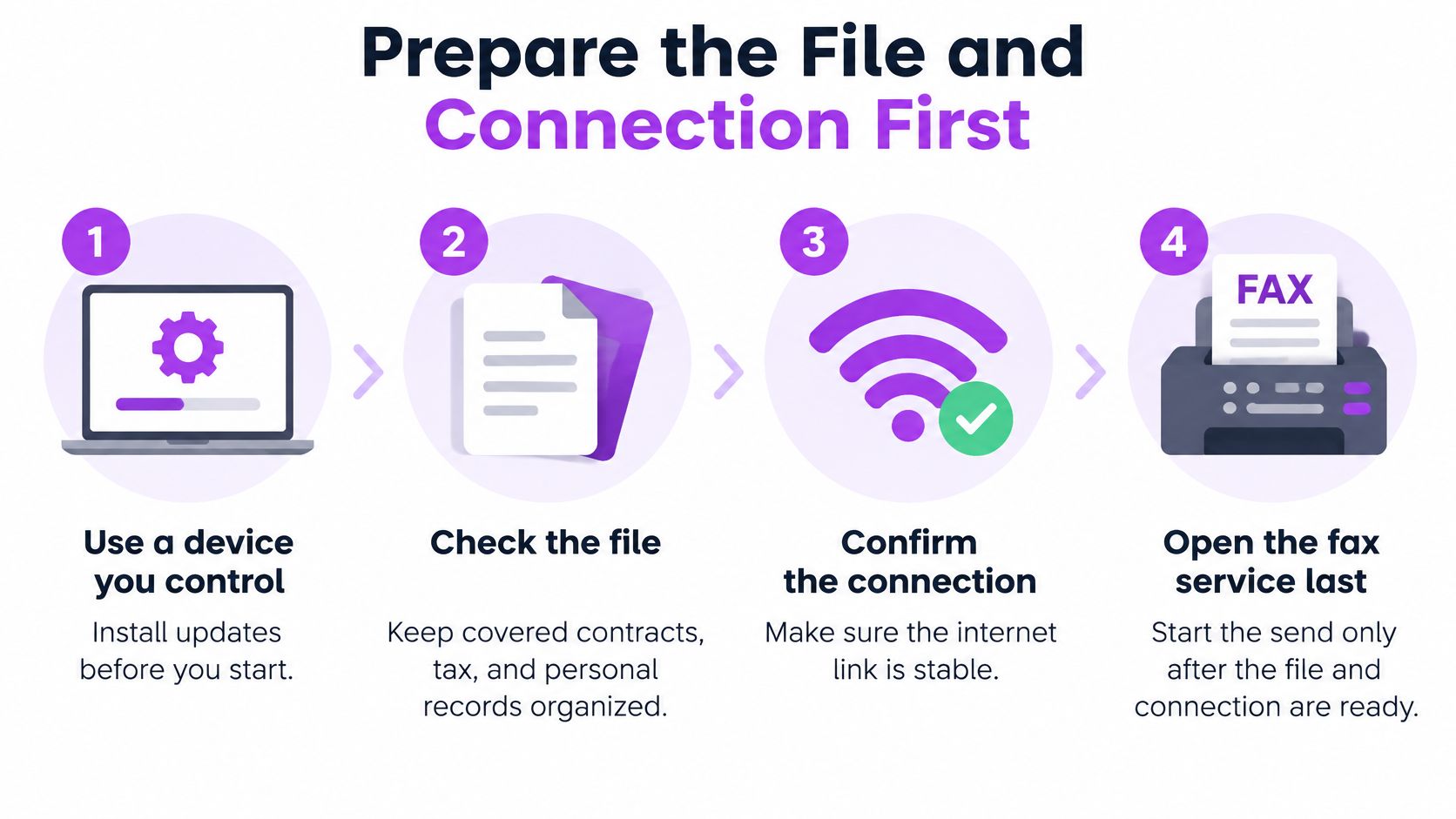
TLS authenticates the service, protects confidentiality in transit, and detects tampering, according to NIST's TLS guidance. That browser-to-provider protection doesn't establish storage or deletion safeguards.
For offices also using internet telephony, GoSafe Dark Web monitoring's guidance to monitor VoIP threats and respond offers related network-security context, not proof of fax privacy.
Before and after: Check device, network, page review, and minimum pages. After saving confirmation, clear unnecessary Downloads, temporary files, and pending print jobs.
None of those checks prevents someone standing beside the receiving machine from reading the pages.
How to Send the Fax from Your Browser
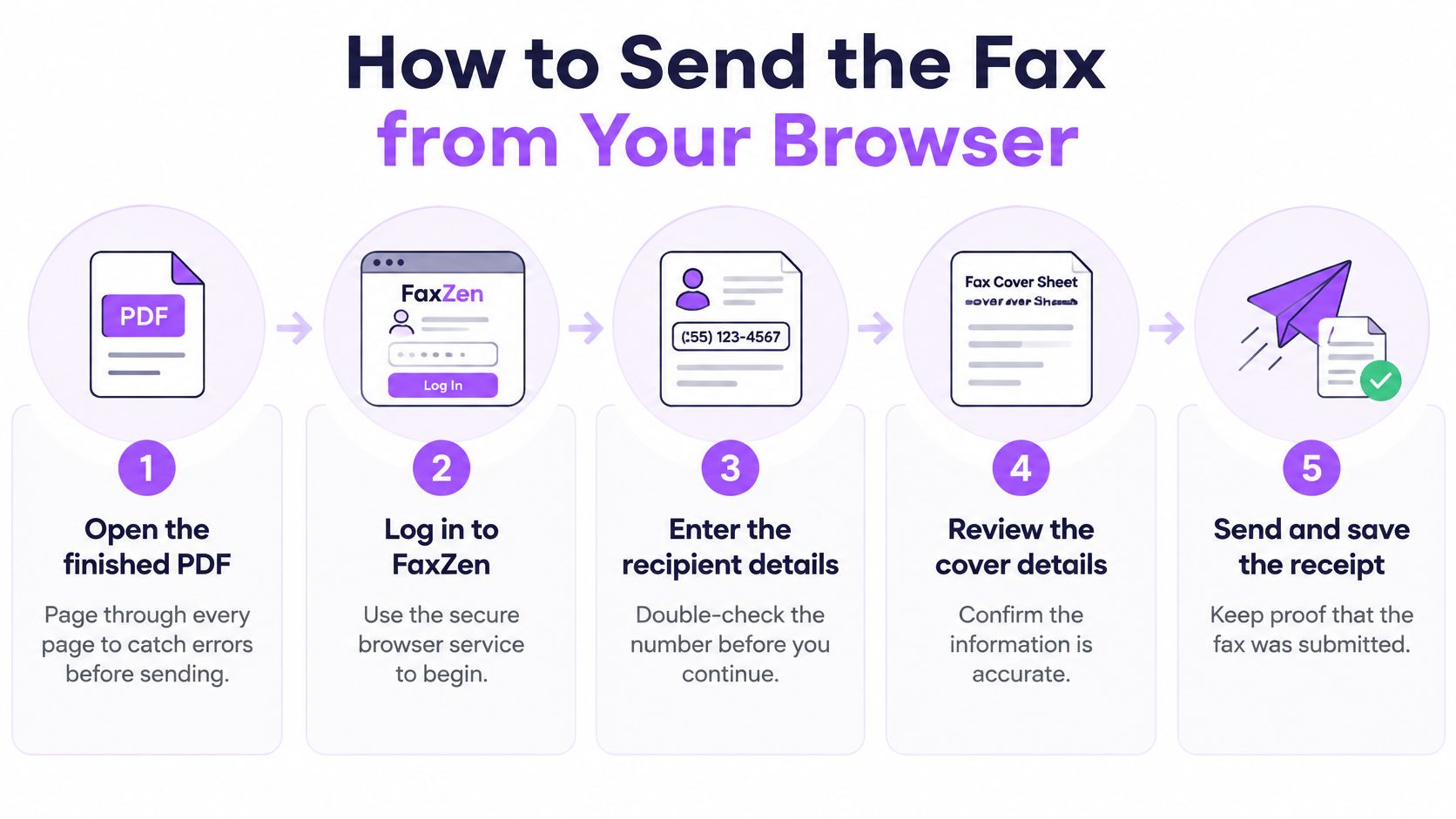
Use FaxZen as the browser-service example, with the finished PDF ready.
- Open every PDF page, including signature pages, so unintended content stays home.
- Open the service on your private computer. The Windows fax guide covers PC-specific file selection.
- Check the address bar's secure connection before uploading, because the upload needs transport protection.
Use this visual sequence alongside your document review.
- Attach only requested pages to reduce unnecessary disclosure.
- Enter the country code and number using the correct fax number format, then compare each digit against the request.
- Use the branded cover field for recipient, sender, page count, and a confidentiality notice, keeping sensitive details off the cover.
- Send and keep the tab open until status appears, so you can catch failures.
Before Send, read the number aloud against the original request, not against your own typed copy.
Use timezone scheduling and busy-line retries where appropriate. Repeated failure calls for investigation, not duplicate submissions.
Read the Delivery Record the Right Way
A green Completed mark means the receiving endpoint accepted the transmission, not that an authorized person read or secured it. Use this verification sequence after sending.
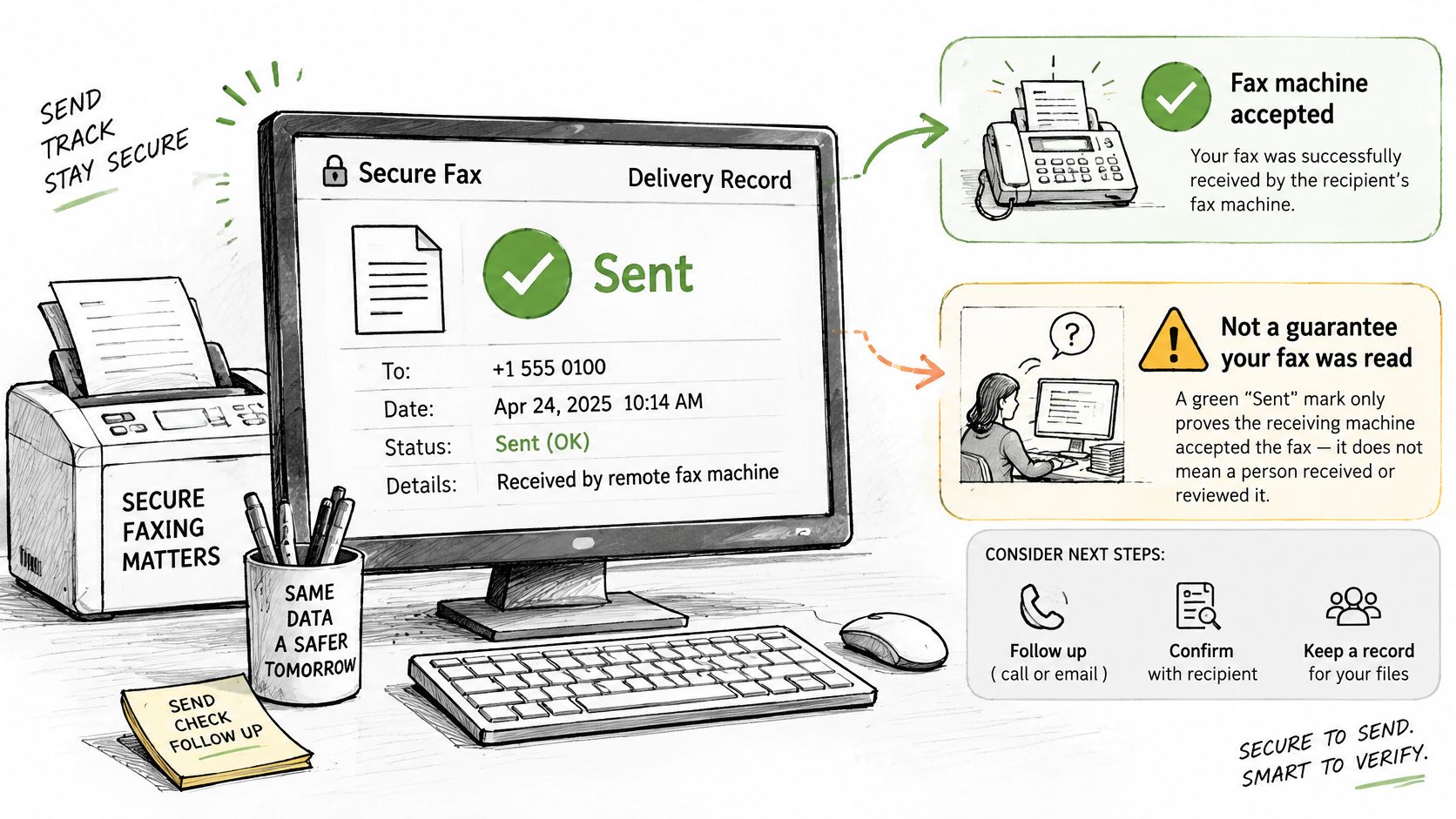
The ITU's fax protocol recommendation describes page-based error correction and retransmission. Compare the reported page count, including the cover, with your PDF; save the status and email fax transmission report.
Fax status and the right next step
| Status | What it proves | Next action |
|---|---|---|
| Completed | Endpoint accepted all pages | Match count; save confirmation; clear copies |
| Busy or no answer | No completed delivery | Allow a business-hours retry |
| Failed after retries | Transmission incomplete | Call recipient; stop blind resends |
| Wrong number discovered | Possible unintended disclosure | Request destruction; verify before resending |
Remember that confirmation emails may contain the original attachment, so protect that retained copy. For a workplace disclosure, notify the responsible privacy or security contact.
This video provides an additional walkthrough.
Start the Fax on FaxZen Today
Ready PDF, verified number, private computer? Open the homepage, upload, and add your cover. Otherwise, fix the uncertainty before paying; review pay-per-use faxing for occasional sending.
Related articles
How to Fax From PC helps with Windows file selection. How to Fax from Mac covers Mac preparation. How to Fax from iPhone helps when your document's on your phone.
Questions People Ask After the First Send
- Public Wi-Fi or library PC? Avoid them for sensitive documents. Use a controlled device and private network.
- Encrypted upload, unattended receiver? Call ahead, request restricted access, and confirm a person secured the pages.
- Repeated line failures? Stop resending. Verify the number and recipient availability by phone.
- Sales flyer? FCC fax-advertising guidance generally requires recipient permission and an opt-out path, subject to limited exceptions. Confirm authorization first.
FaxZen offers browser uploads, pay-per-fax sending, status tracking, and email confirmations without a fax machine. Visit FaxZen, check the destination number once more, and send your prepared document.