Can I Fax From My iPhone? Your Complete Guide
Table of Contents
Of course you can fax from your iPhone. What used to require a clunky office machine is now just a convenient app on the phone you use every day, merging the old-school reliability of faxing with modern mobile convenience. The days of searching for a physical fax machine are over; now, sending secure documents is as simple as sending a text message.
Ready To Fax?
Start sending faxes online in seconds with FaxZen - No account required
Send Fax Now 🚀Ready to send a fax from your iPhone in minutes? Give FaxZen a try and see just how easy it is to manage documents from anywhere.
The Modern Way to Fax Is Already in Your Pocket
Faxing from your iPhone perfectly bridges the gap between a decades-old, trusted communication method and the smartphone that never leaves your side. It might seem old-fashioned, but faxing is still a critical tool in fields like law, finance, and government, where verified document transmission is non-negotiable. The big difference now is that instead of being chained to a physical machine, your iPhone becomes a powerful, secure, and completely mobile fax station. This isn't just a niche trend; it's a major shift in how people handle official documents.
The sheer convenience of sending paperwork directly from a smartphone has caused a huge surge in adoption. With the right service, you can do it all—from scanning a physical paper with your iPhone's camera to attaching digital files straight from iCloud or Google Drive. To see exactly how this works, check out our detailed guide on how to fax from your phone. We’ll walk you through the process, step-by-step, so you can send your first fax in just a few taps.
How Your iPhone Sends a Real Fax
So, how does your iPhone, a device without a phone jack or a fax modem, manage to send a document to an old-school fax machine? The process is a clever bridge between new and old technology. Your iPhone doesn't do the heavy lifting itself. Instead, it acts as the starting point, using a fax app to send your digital document over the internet to an online fax service. Think of it as emailing the document to a special translator.
That service takes your pristine digital file and converts it into the analog signal a traditional fax machine understands. It then dials the recipient's fax number over a standard phone line and transmits the document just like a physical machine would.
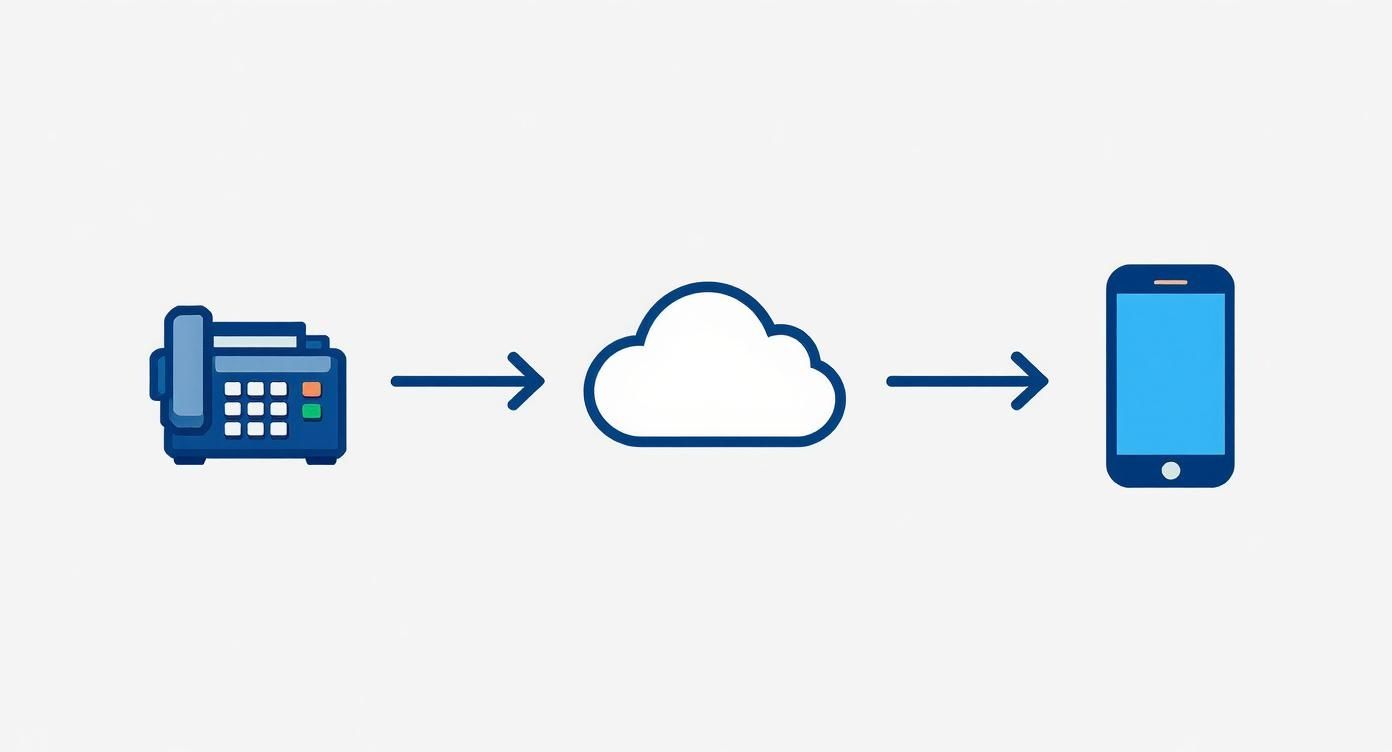
This hybrid approach gives you the best of both worlds: the convenience of a digital workflow on your iPhone and the universal compatibility of a standard fax delivery. The person on the other end gets a normal fax, completely unaware it started its journey from the palm of your hand. Of course, for this all to work, the recipient will need to provide you with a valid fax number. If you're new to this, it's worth understanding what is a fax number and how it differs from a regular phone number.
Choosing the Right iPhone Faxing Method
Not all mobile faxing solutions are created equal. The best choice for you really boils down to how often you're sending documents and what features you actually need. If you just need to send a one-off document, a simple pay-per-fax app might be all you need. It gets the job done for that rare occasion.
However, if you find yourself sending faxes more than just once in a blue moon, a subscription-based online fax service like FaxZen is going to give you a lot more value. These platforms are more than just a sending tool; they provide a dedicated fax number so you can also receive faxes, offer secure cloud storage for your documents, and have predictable pricing that’s more cost-effective in the long run. It turns your iPhone into a complete communication hub, not just a one-way sender.
| Feature | Pay-Per-Fax App | Subscription Service (like FaxZen) |
|---|---|---|
| Best For | Infrequent, one-time faxes | Regular personal or business use |
| Receiving Faxes | Not typically supported | Yes, with a dedicated number |
| Cost Model | Pay for each fax sent | Monthly/annual fee for a set number of pages |
| Document Storage | Limited or none | Secure cloud storage included |
| Professionalism | Basic functionality | Includes cover sheets, dedicated number |
Understanding the difference is key. For a much deeper dive, our complete online fax service comparison lays out all the features and benefits of different models. Ultimately, a full-featured service is the more robust and professional solution for anyone using fax consistently.
Sending Your First Fax From Your iPhone
Alright, let's get that document sent. The whole process is much simpler than you probably think. Your first move is to grab a trusted fax app like FaxZen from the App Store. Once it's installed, you’ll typically set up an account and pick a plan that makes sense for you—whether you fax daily or just this one time.
Next up is getting your document ready. This is where the iPhone really shines. You can use your phone’s camera as a surprisingly good scanner to digitize a physical paper. Just snap a clear picture. Or, if the file is already digital, you can attach it directly from iCloud, Google Drive, or even your email. From there, it’s just a matter of entering the recipient’s fax number. Most apps also let you fill out an optional cover sheet, which is a nice professional touch. Give everything one last review to make sure it looks right. With a final tap, your fax is off. You'll get a confirmation report sent directly to the app, giving you a digital record and peace of mind.
For those times when you don't need a full subscription, you can learn more about how to send a fax online one time for maximum convenience.
Tips for Flawless Mobile Faxing
Sending a fax from your iPhone is incredibly convenient, but a few pro tips can make the difference between a successful transmission and a failed one. First, your internet connection is key. While cellular data works, a stable Wi-Fi signal is always your best bet, especially for longer documents, as it prevents the transmission from timing out. If you're scanning a physical document, place it on a flat, dark surface in a well-lit room to create contrast and ensure the text is clean and easy to read.
Before you hit send, take a moment to double-check the recipient's fax number. One wrong digit could send your private information to the wrong place entirely. Also, consider adding a professional cover page. It’s not always required, but it provides important context for the recipient. If you need a good starting point, this fax cover sheet PDF template is a lifesaver. Finally, keep your apps and your iPhone's iOS updated. It’s a good habit to stay updated on iOS bug fixes that impact app functionality to ensure everything runs smoothly. Always save the transmission confirmation report as your digital proof of delivery.
Pro Tip: Before sending a multi-page document, send a one-page test fax to yourself or a colleague. This ensures your workflow is correct and the final document quality is high.
Frequently Asked Questions
Do I need a physical phone line to fax from my iPhone?
No, you don't need a physical phone line. Online fax services use your iPhone's internet connection (Wi-Fi or cellular data) to send the document to their servers. They then transmit the fax over traditional phone lines to the recipient's machine.
Is it secure to send documents via an iPhone fax app?
Yes, it is often more secure than using a traditional office fax machine. Reputable online fax services use strong, end-to-end encryption to protect your documents during transit. This prevents sensitive information from sitting in plain view on a shared office machine.
Can I receive faxes on my iPhone?
Absolutely. To receive faxes, you'll need to subscribe to an online fax service that provides you with a dedicated fax number. When someone sends a fax to that number, the service converts it into a digital file (like a PDF) and delivers it to your email or the faxing app on your iPhone.
What kind of documents can I send from my iPhone?
You can send almost any document type. Most iPhone fax apps support popular formats like PDF, DOCX, and image files (JPG, PNG). You can also use your iPhone’s camera to scan and send physical papers like contracts, invoices, or identification documents.
How much does it cost to fax from an iPhone?
The cost varies depending on the service you choose. Some apps offer a pay-per-fax model, which is ideal for one-time use. For more frequent needs, subscription services offer monthly or annual plans that typically include a set number of pages and a dedicated fax number, which is often more cost-effective.
Related Articles
- How to Send a Fax from Email in 3 Easy Steps
- The Ultimate Guide to Faxing from a Computer
- Choosing the Best Online Fax Service for Your Needs
- What is eFax? Everything You Need to Know
- Faxing with Google Voice: Is It Possible?