How to Fax from Email in Outlook: No Machine Needed
Table of Contents
You've got a signed contract sitting in Outlook, a deadline approaching, and someone has just asked for a fax number instead of an email address. The problem isn't finding the Send button. It's knowing which Outlook setup works, how to format the destination, and why a perfectly normal email can fail before it reaches the fax network.
Ready To Fax?
Start sending faxes online in seconds with FaxZen - No account required
Send Fax Now 🚀If you need an occasional fax without buying equipment, start with FaxZen. It provides a practical email-to-fax route for Outlook users who want to send a document and receive delivery confirmation in the same inbox.
Why Faxing from Outlook Requires an External Service
Outlook doesn't include a native fax button. Microsoft's guidance says users who want to fax from Outlook must use an external solution, such as an online fax service, a fax add-in, or Windows Fax and Scan with fax-capable hardware. Microsoft also documents Internet fax through the Windows Fax driver or service, which confirms that faxing is an add-on capability rather than a core Outlook feature.
That distinction matters when a client is waiting. Outlook is only the interface. You write a normal email, address it using the fax provider's required format, attach the document, and send it. The external gateway converts that message into a fax and handles transmission.
Practical rule: Outlook can start the job, but the fax service supplies the fax network.
FaxZen is one option for this workflow. It lets individuals and businesses send PDFs or images without a fax machine or account. For a useful explanation of the underlying model, see how online fax services work.
Getting Started with FaxZen and Outlook
A fax can fail even when Outlook shows a normal sent message. The integration depends on the recipient address, attachment handling, and the provider's processing rules.
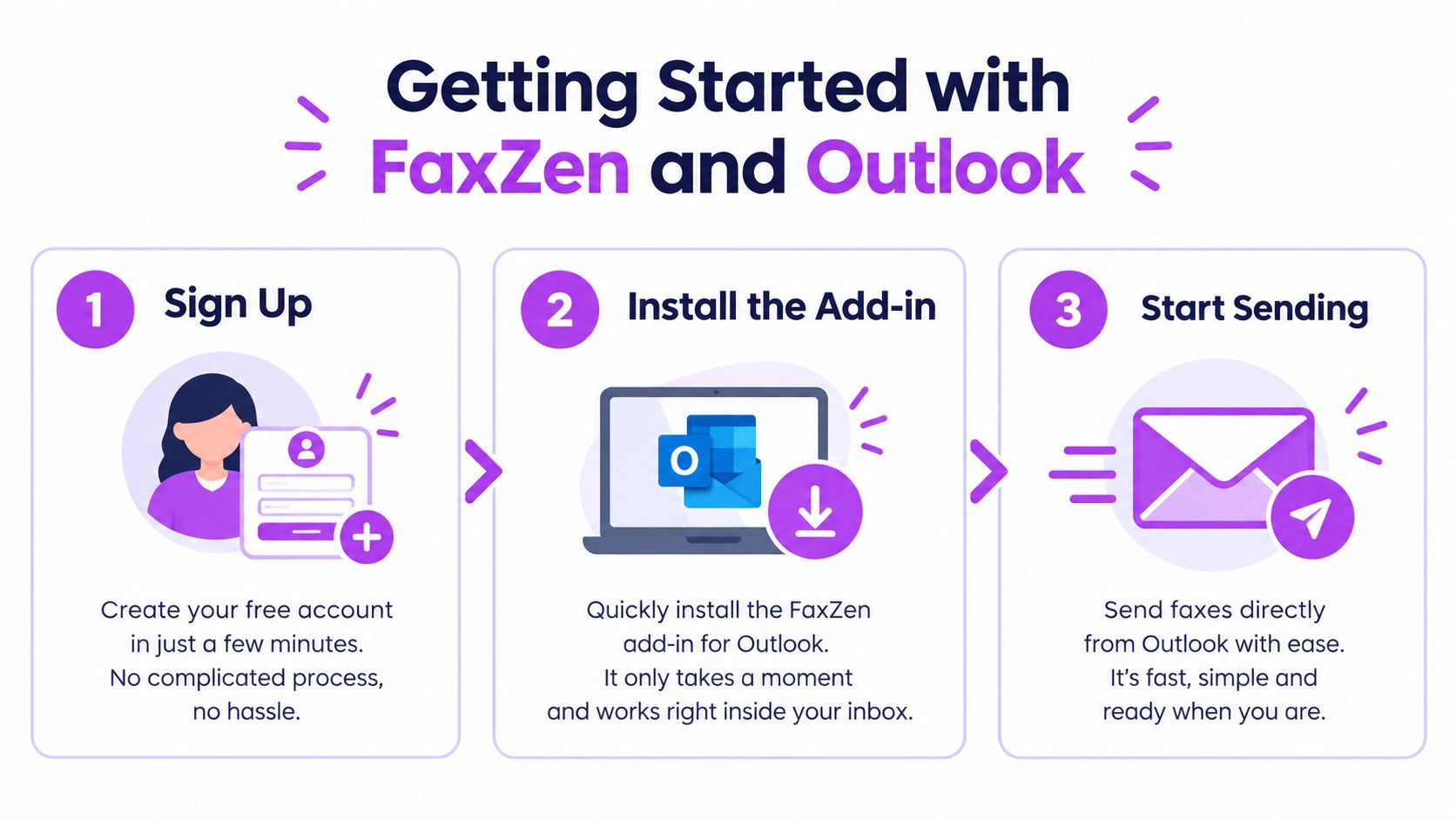
- Create or access your FaxZen account and select pay-per-fax pricing or a fax credit package.
- Open Outlook and start a new email.
- Enter the recipient's fax number followed by the provider domain in the To field.
- Attach a PDF or image, then place cover-page information in the subject or message body.
- Send the email and wait for the delivery status message before assuming the fax arrived.
For U.S. and Canada destinations, use the full 11-digit format with the leading 1. Leave out an outside-line prefix such as 9. Test one destination before standardizing the process across a team, and optimize your business apps so Outlook and related tools support the same procedure.
FaxZen Features Overview
| Feature | Description |
|---|---|
| Country coverage | Delivery to 100+ countries |
| Cover pages | Branded cover-page options |
| Scheduling | Timezone detection for scheduled sending |
| Retry logic | Intelligent retries during suitable delivery windows |
The FaxZen email-to-fax service keeps email composition inside Outlook, so occasional users can send documents without learning a separate desktop fax application. Check the status message before filing the sent email as proof of delivery.
Formatting Your Fax Email Correctly
Address formatting causes more failures than the Send button. For North American destinations, use the leading 1, enter the number as digits, and leave out hyphens and parentheses. Don't place the fax address in BCC. Government guidance for Outlook fax workflows warns that BCC fax addresses won't be sent.
Attachment size creates a second failure point. Microsoft documents a default 20 MB limit for internet email accounts in Outlook 2013 and later, while Exchange Server mailboxes default to 10 MB unless an administrator changes the setting. The limit includes the message body and the combined size of all attachments, not just the largest file. Microsoft explains this behavior in its Outlook attachment-size guidance.
Always verify the fax number format before hitting Send.
A OneDrive sharing link isn't the same as an attachment. Outlook.com allows 25 MB for file attachments, while OneDrive-linked files can be much larger, up to 2 GB, but a fax gateway generally needs the actual file attached or uploaded. For a dependable workflow, format your fax correctly, compress the PDF, reduce unnecessary pages, or remove extra attachments before sending.
Sending and Verifying Your Fax Delivery
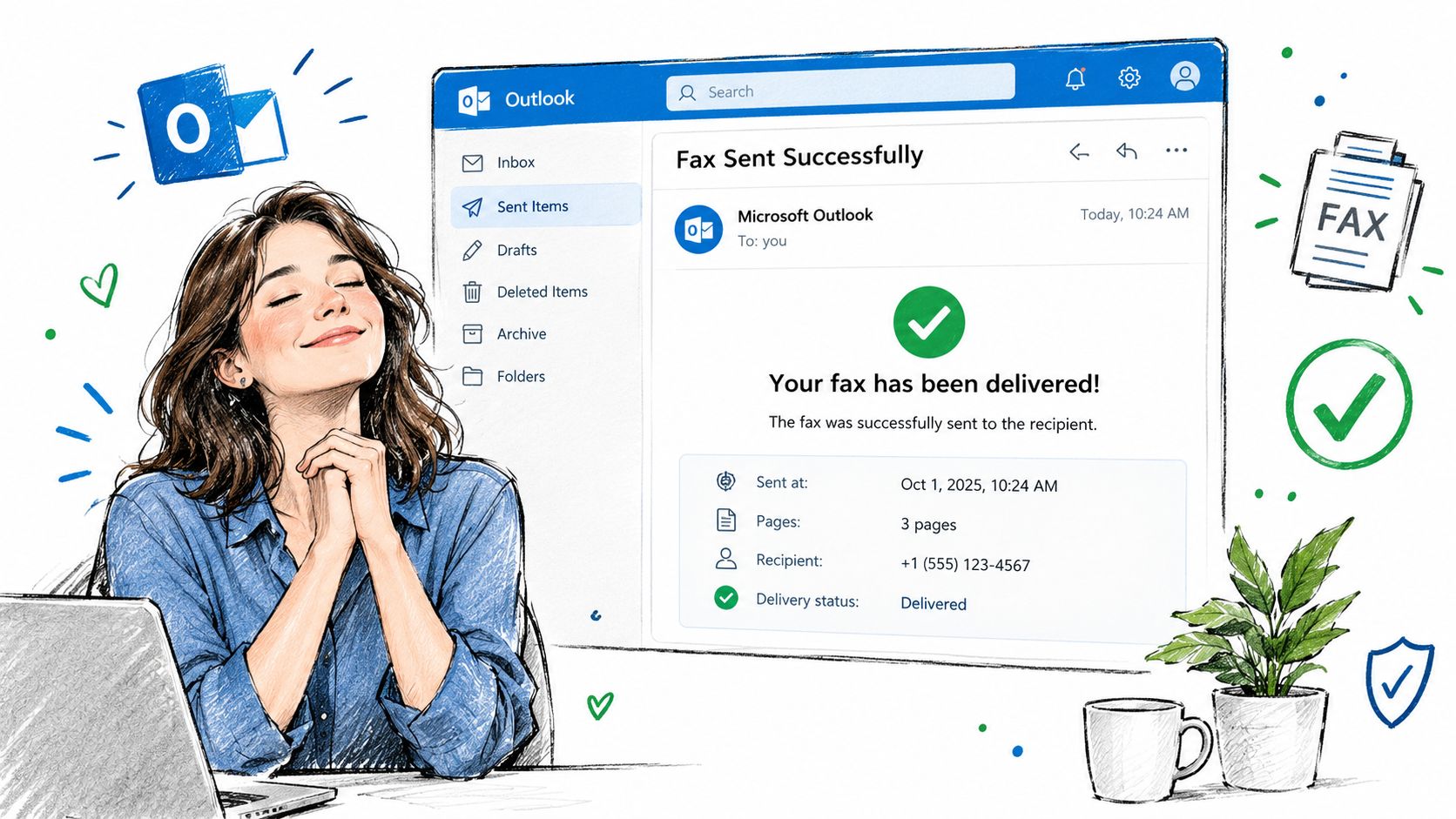
After you click Send, the external service converts the email and attachment into a fax job. A delivery confirmation typically returns to Outlook within a minute or two, often showing a timestamp and page count. That proof comes from the fax provider, not from an Outlook fax feature.
Check the confirmation email and, if you use an account, review the fax history dashboard. A successful notice should identify the destination and delivery status. An error notice means the gateway couldn't complete transmission, so don't assume the recipient received the document.
Traditional faxing requires hardware, a working line, and physical access to the machine. Email-to-fax removes that setup and makes the confirmation part of the normal inbox workflow. FaxZen supports destinations in 100+ countries, provided the number uses the required international format. For a closer look at delivery records, see this guide to fax transmission reports.
Troubleshooting Common Fax Issues
Start with the To field. A missing leading 1, punctuation, or an outside-line prefix can prevent the gateway from parsing the number. If the message never leaves Outlook, check the total attachment size and message body against your account's limit. If no confirmation arrives, check spam, verify the destination, and retry only after correcting the likely cause.
FaxZen offers pay-per-fax sending, automatic document deletion after 24 hours, and 256-bit SSL encryption, while a traditional fax machine requires physical equipment and maintenance.
| Feature | FaxZen Online | Traditional Fax Machine |
|---|---|---|
| Hardware | No fax machine required | Machine and fax-capable line required |
| Pricing | Transparent pay-per-fax option | Equipment and service costs vary |
| Document handling | Automatic deletion after 24 hours | Physical or locally stored papers |
| Security | 256-bit SSL encryption | Depends on local setup |
For a broader checklist, use this fax troubleshooting guide. Teams that rely on clean recipient data can also use CleanMyList to help cut bounces before sending other email campaigns, though it won't replace checking a fax number manually.
Frequently Asked Questions
Does Outlook have a built-in fax button?
No. Outlook requires an external fax service, add-in, or fax-capable Windows setup.
Can I send a PDF from Outlook as a fax?
Yes. Attach the PDF to a message addressed in the fax provider's required format. A sharing link usually isn't sufficient.
Why did my fax email fail immediately?
The attachment may exceed your account's limit, or the fax address may contain an invalid format. Check the number, punctuation, and combined attachment size.
How do I know the fax arrived?
Look for the provider's delivery confirmation in Outlook. It may include the delivery status, timestamp, and page count.
FaxZen lets you send PDF or image documents from an Outlook-style email workflow without a fax machine, while providing status tracking and delivery confirmations. Visit FaxZen to send your next occasional fax with a correctly formatted address and a clear record of delivery.