
Recovering Overwritten Files: A Practical Guide
Table of Contents
You saved the wrong version of an important document, closed the application, and only then noticed that the original content is gone. Before installing recovery software or continuing to edit files, stop using the affected drive. Recovering overwritten files depends first on whether the original data was physically replaced or only hidden behind newer file-system metadata.
Ready To Fax?
Start sending faxes online in seconds with FaxZen - No account required
Send Fax Now 🚀If the document supports a time-sensitive filing, contract, or fax, preserve the available copy before troubleshooting. For sending a document without creating another local copy, FaxZen lets you upload a PDF or image and send it online.
What Overwriting Really Means and Why It Matters
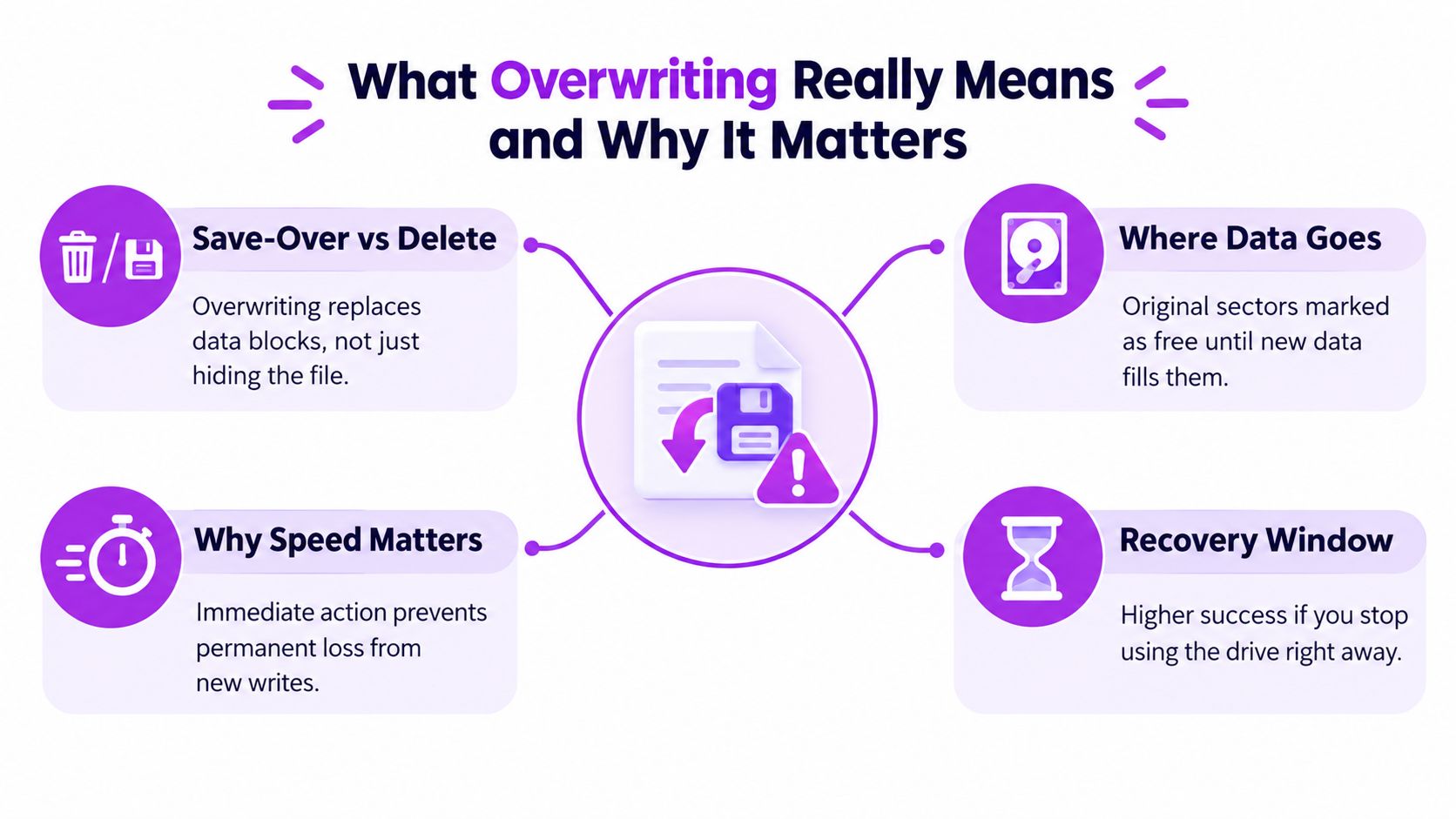
“Overwritten” describes several different situations. A save-over may create a new version, update a directory record, or move the older content into a journal, snapshot, or cloud history. A true physical overwrite happens when new bytes occupy the same sectors or blocks that held the original bytes. Once those original blocks have been replaced, ordinary recovery software has nothing intact to reconstruct.
A sector is a small addressable area on a storage device. A block is the storage unit managed by a file system. An inode is metadata used by systems such as Unix-based file systems to describe a file's location and attributes. A file-system journal records changes that help the system recover after interruptions, and may retain useful remnants when a save-over changed metadata rather than the underlying content. On SSDs, TRIM tells the device which blocks are no longer needed, while garbage collection can clear them internally.
A clear explanation of file synchronization also helps here. A sync conflict or versioned save may leave an earlier copy online even though the local filename now opens the wrong content.
Practical rule: Stop writing to the affected volume, then check backups, snapshots, and version history before scanning it.
The historical debate is narrower than many recovery articles suggest. A 2007 Computerworld report described claims that specialized probes might detect residual magnetism at the edges of magnetic tracks, while also presenting the counterpoint that recovering ordinary overwritten sectors from modern drives through “shadow copies” was false. Later analysis found recovery odds falling to less than 1% after one overwrite and less than 0.00000001% after eight overwrites on non-destroyed hard disks, while an academic analysis concluded that one raw wipe pass on a new drive leaves less than a 0.01% chance of recovery, with meaningful recovery not feasible in practice on a used or formatted drive (Protectstar analysis, ERAU forensic paper).
Recovering Overwritten Files on Windows
Windows gives you a useful first check that doesn't modify the source file. Locate the original folder, right-click it, select Properties, and open Previous Versions. If Windows File History, System Protection, or another snapshot source captured the folder, versions appear chronologically and can be opened or restored. Copy the older file to a different location first, then compare it with the current version.
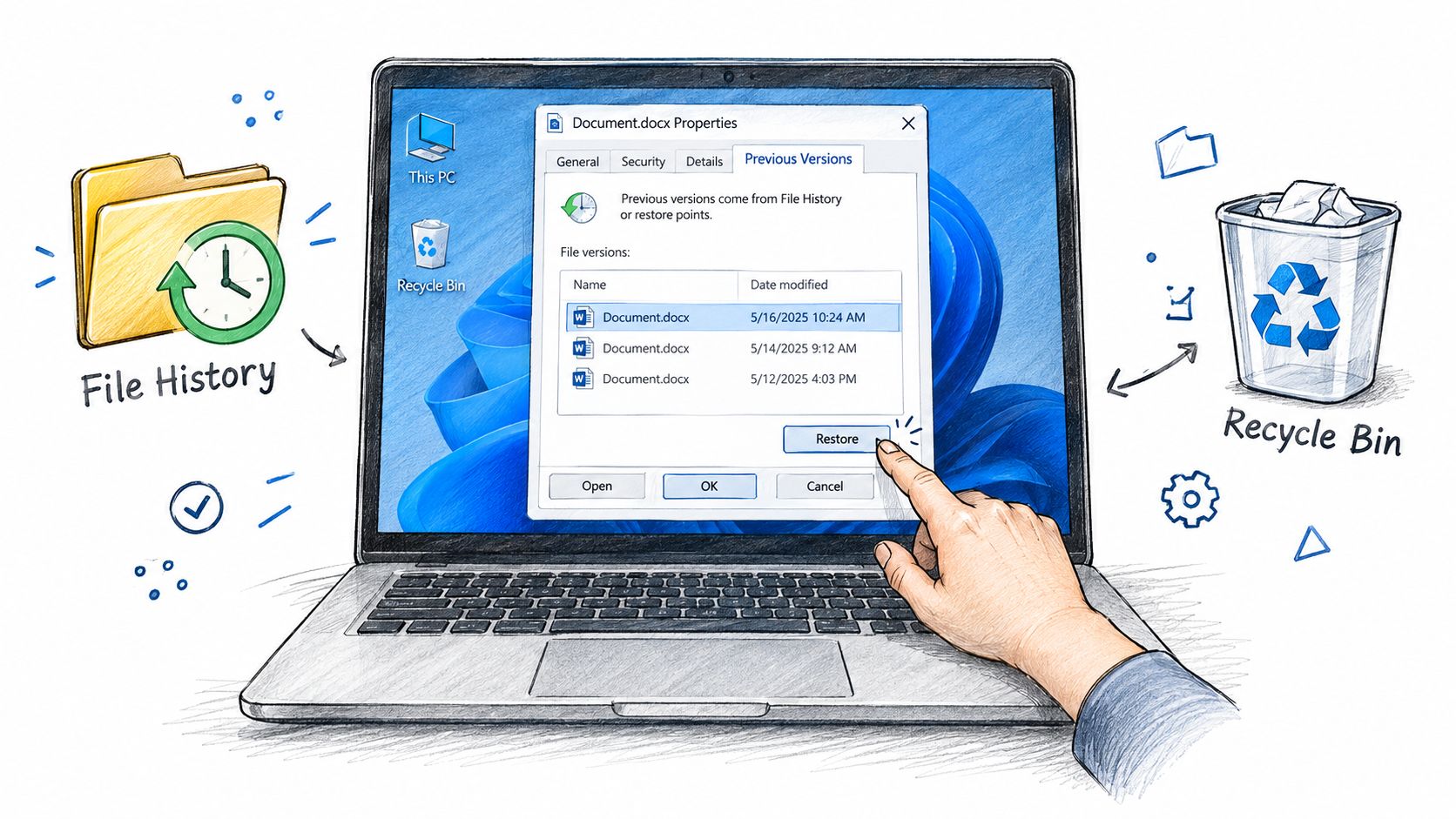
If the tab is empty, don't assume the file is physically gone. File History may still provide a copy through Control Panel > System and Security > File History > Restore personal files. Windows Backup may also contain an earlier file, particularly on systems maintained with an older backup workflow. The Recycle Bin usually won't help when the original filename still exists and opens newer content, because the operating system may treat the event as a replacement rather than a deletion.
Shadow copies can be absent because System Protection was disabled, the relevant restore point was removed, or storage behavior cleared the old blocks. SSDs with active TRIM are especially unforgiving. A comparative benchmark reported metadata-based recovery of about 90–95% on HDDs versus 10–30% on SSDs with active TRIM, while signature-based recovery fell from 75–85% on HDDs to 5–15% (comparative SSD and HDD recovery study).
For a damaged or unstable disk, read guidance on how to recover data from a failed hard drive before reconnecting it repeatedly. This walkthrough is also useful when the problem includes clicking, disconnections, or corruption rather than a straightforward save-over.
Recovering Overwritten Files on Mac and Cloud Drives
On macOS, open Finder and go to the folder that contained the file. Enter Time Machine, move through the backup timeline, select the earlier copy, and choose Restore. Time Machine is valuable because it can preserve a local historical version even when a synchronized service has already accepted the newer file.
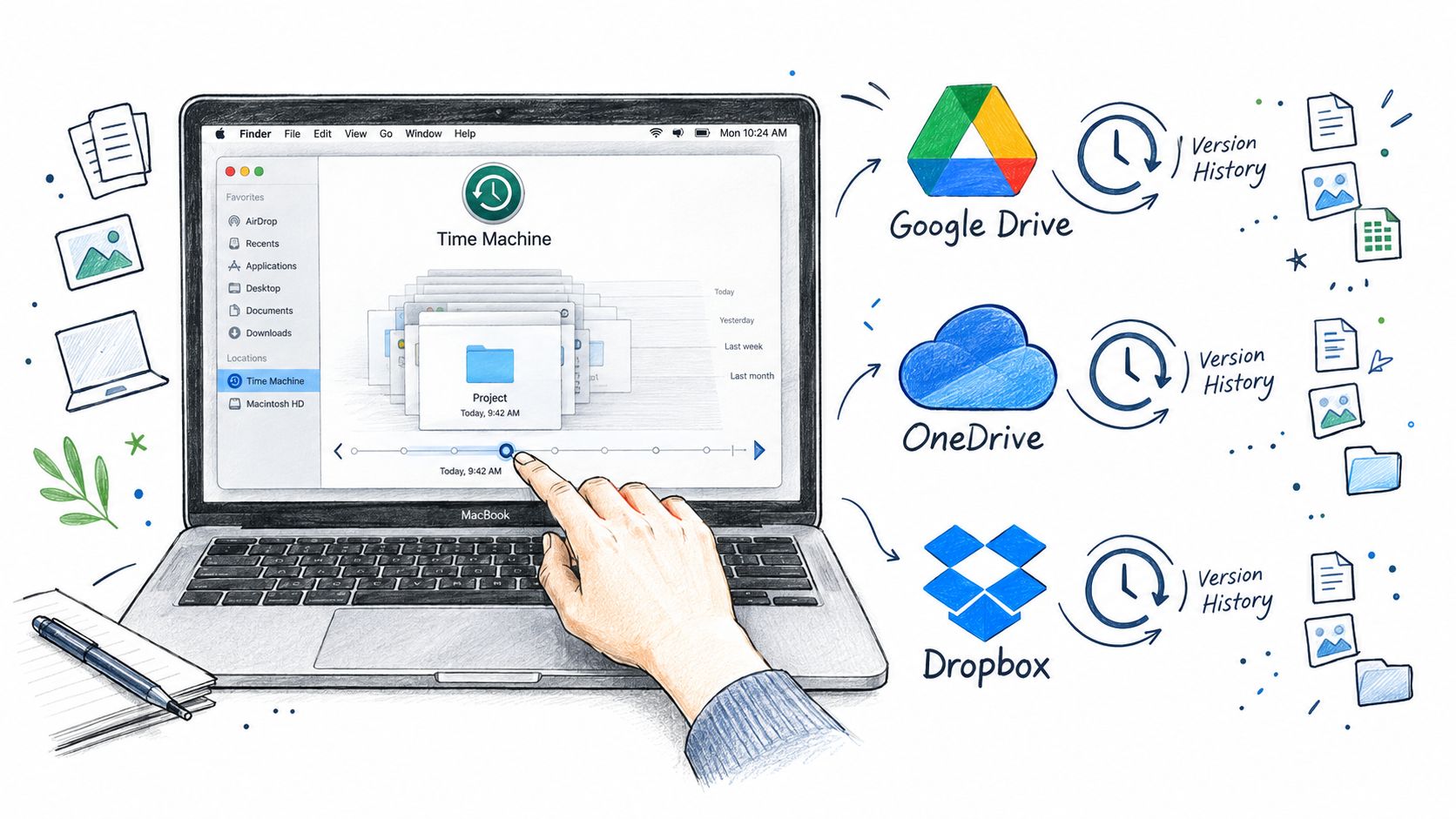
Cloud services use their own recovery layers. In OneDrive, right-click the synced file and open Version history. Microsoft 365 subscribers may also use Restore your OneDrive, select a date and time before the overwrite, and confirm the rollback through the activity view (Microsoft OneDrive guidance).
Google Drive usually offers Manage versions from the file menu for supported files. Dropbox provides Version history, subject to the retention window attached to the account or plan. Check the cloud copy from its web interface rather than relying only on the synchronized folder, because sync can propagate the wrong version across devices.
| Location | First recovery path |
|---|---|
| Mac local folder | Time Machine timeline |
| OneDrive | File Version history |
| Google Drive | Manage versions |
| Dropbox | Version history |
Cloud history is often stronger than local undelete because the service may retain a prior object separately from the current local block. A properly configured off-site backup strategy gives you another independent copy when synchronization has already completed.
DIY Tools Versus Professional Recovery Services
Choose the recovery method based on the storage event, not the file extension.
| Option | Best Use Case | Overwrite Success Rate | Cost Range | Time to Result |
|---|---|---|---|---|
| Recuva | Recently deleted files and simple metadata loss | Limited after true overwrite | Varies by edition | Usually quick |
| TestDisk or PhotoRec | Partition damage and file carving | Limited, filenames may be lost | Free | Depends on scan |
| Disk Drill | Guided scans and common file systems | Limited after physical replacement | Varies by edition | Often same session |
| R-Studio | Advanced logical recovery and complex volumes | Limited after true overwrite | Varies by edition | Depends on drive |
| Cleanroom lab service | Failing disks, RAID, or critical data | Specialist assessment required | Quote required | Depends on diagnosis |
DIY tools can help when the save-over only changed metadata, left orphaned clusters, or created a recoverable temporary copy. They can't recreate bytes that new data physically replaced. Install recovery software on a separate drive, never on the affected volume, and begin with a read-only scan. Save recovered output somewhere else.
Escalate immediately if an SSD has already run TRIM, an HDD clicks, a RAID array is degraded, or the file has business-critical value. Repeated scans and improvised repairs can reduce the lab's options. For local assistance, on-site file recovery in Edmonton may be more appropriate than shipping a fragile device.
Ask any lab whether it creates a forensic image first, whether the evaluation is documented, what happens if recovery fails, and whether the quote separates logical work from hardware work. A credible provider should explain the limits of true overwrite recovery rather than promise a guaranteed result.
Prevention Habits That Stop the Next Overwrite
The best protection is a second copy that updates independently. Turn on File History in Windows and Time Machine on Mac, then connect the backup drive consistently enough for new versions to be captured. Test opening an older file, because a backup that has never been verified is only an assumption.
Enable version history in OneDrive, Google Drive, and Dropbox for working documents. For important edits, use Save As and preserve the original under a dated filename or inside a Versions folder. This costs almost no time and separates “replace the current draft” from “create the next draft.”
A weekly image backup adds protection when a file system or drive fails. Keep at least one copy offline so a sync mistake or malware event can't change every copy at once. Practical data protection advice from F1Group can help turn these habits into a repeatable routine.
Finally, password-protect sensitive working folders where appropriate, using this guide to password-protecting folders. Protection doesn't replace backups, but it reduces accidental edits by other users and applications.
Frequently Asked Questions About Overwritten File Recovery
Can you recover an overwritten file from an SSD
Sometimes, but only when the original content survives in a version store, snapshot, temporary file, or a block that wasn't replaced. TRIM and garbage collection can remove deallocated SSD blocks quickly, so stop using the device and check cloud history or backups before trying software.
Are paid recovery tools worth it
Paid tools may add deeper scans, RAID support, better file-system handling, and byte-level previews. They won't reverse a physical overwrite. A free tool can be enough for a deleted file or metadata problem, while a complex volume may justify a paid scanner after you have secured an image.
Is recovery easier for deleted files than overwritten files
Usually. Deletion commonly removes or changes the directory entry while leaving original bytes available until reuse. A true overwrite replaces those bytes, so the recovery task changes from locating intact content to attempting reconstruction, which is far less promising. For retention planning, document file retention policies before users need them.
How much does professional data recovery cost
The price depends on whether the case is logical, mechanical, SSD-related, or connected to RAID complexity. Labs should quote after learning the device model, symptoms, operating system, file type, and whether the drive has been used since the incident. Turnaround varies by case, and rush handling may be available, but no reputable provider should guarantee recovery after a confirmed physical overwrite.
FaxZen helps you send recovered PDFs and images online without a fax machine, with delivery tracking and email confirmation for a clear record. If you need to submit an important document after recovering it, visit FaxZen to upload and send it securely.